

This guide walks you through the whole client form - from creating the project to the moment the client's data lands in your OZC calculation. Every step is one screen and two-three sentences, no jargon. How the AI help inside the form works and what happens to document privacy - we cover that separately in The AI form: client data without ten phone calls.
1. Create a project
You start the same way as with any other job - create a new project in HeatAlgo. That's where the form and everything the client fills in will live.
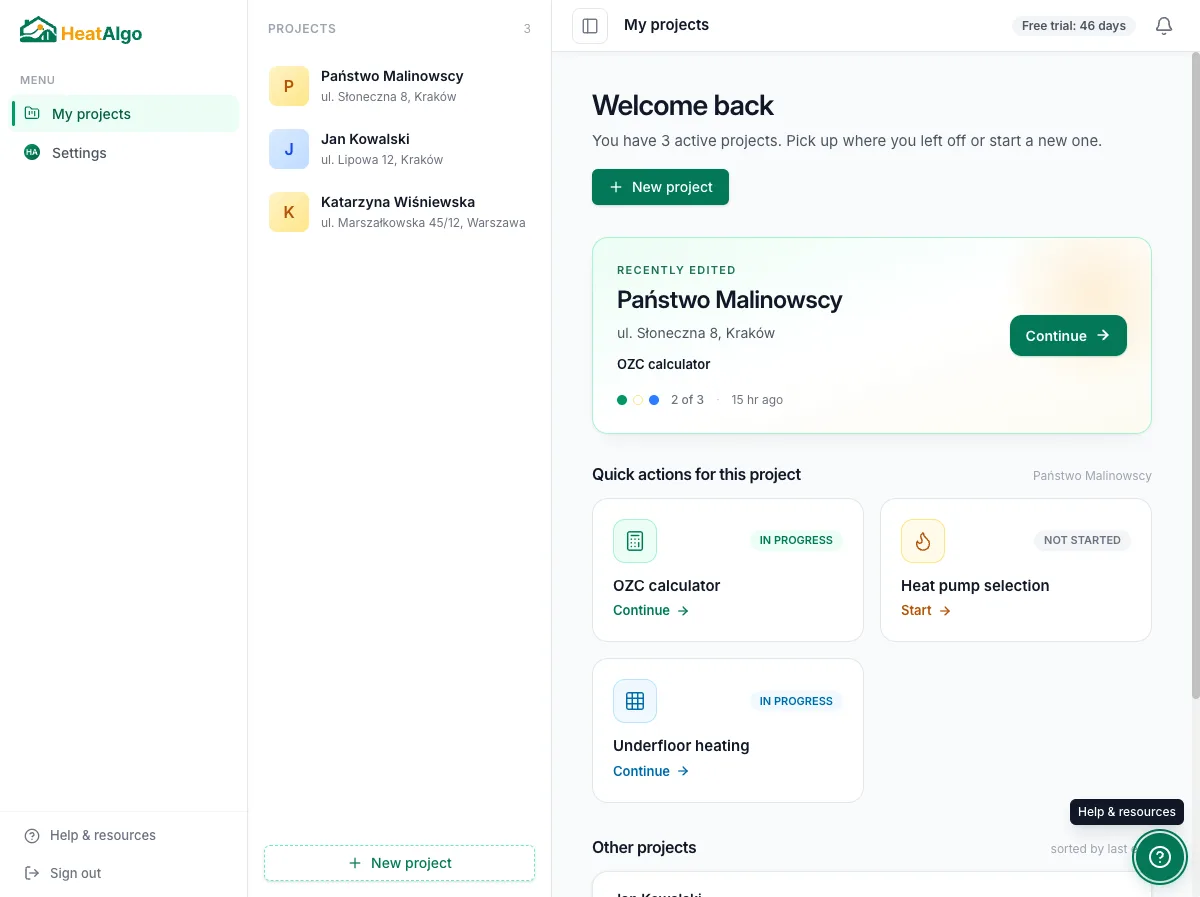
2. Open the form inside the project
In the project view you'll find the "Client form" card. Click "Prepare form" to move on to configuration.
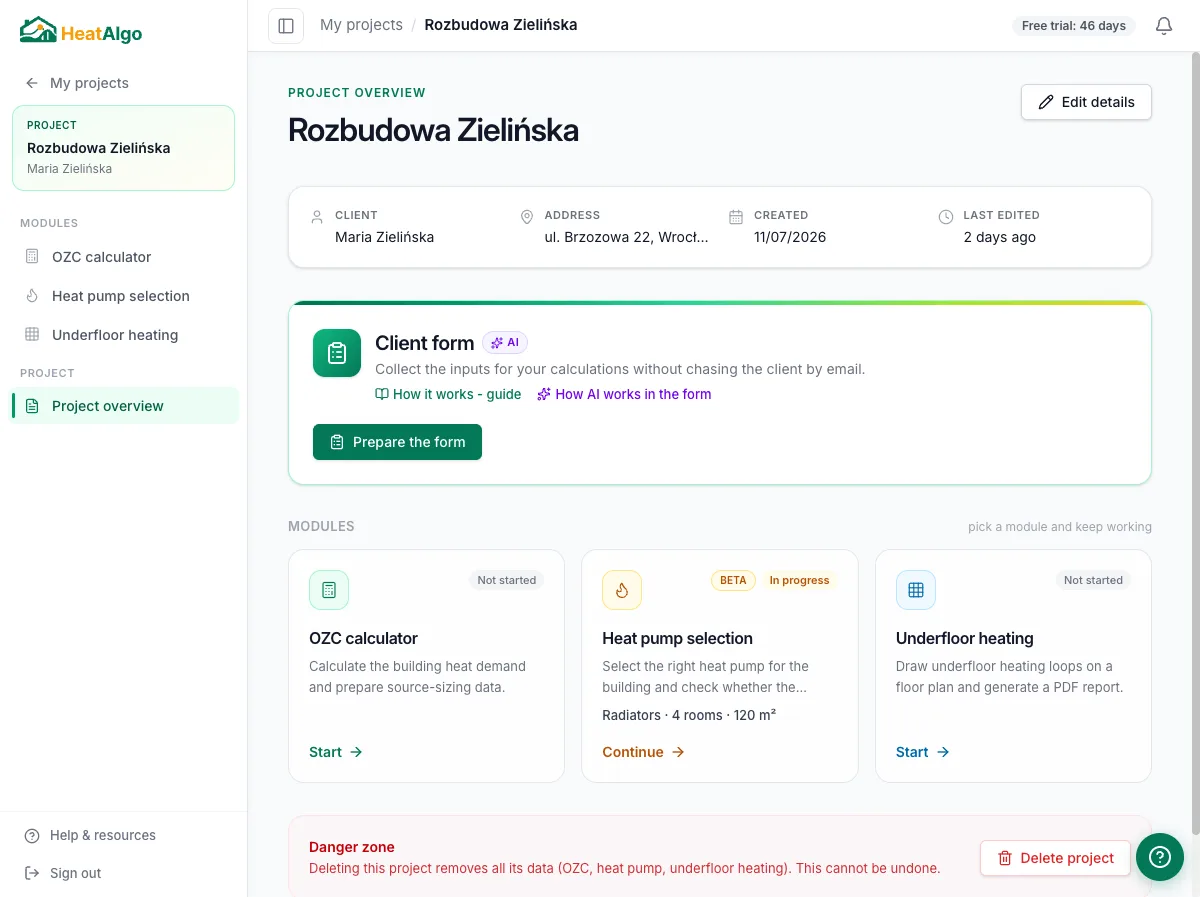
3. Adjust the fields - optional
If you want, untick the sections or individual fields you don't need for this job, and write your own message to the client. You can also pre-fill some answers you already know - the client then sees less to complete. You can also skip this step entirely and continue with the default set of fields.
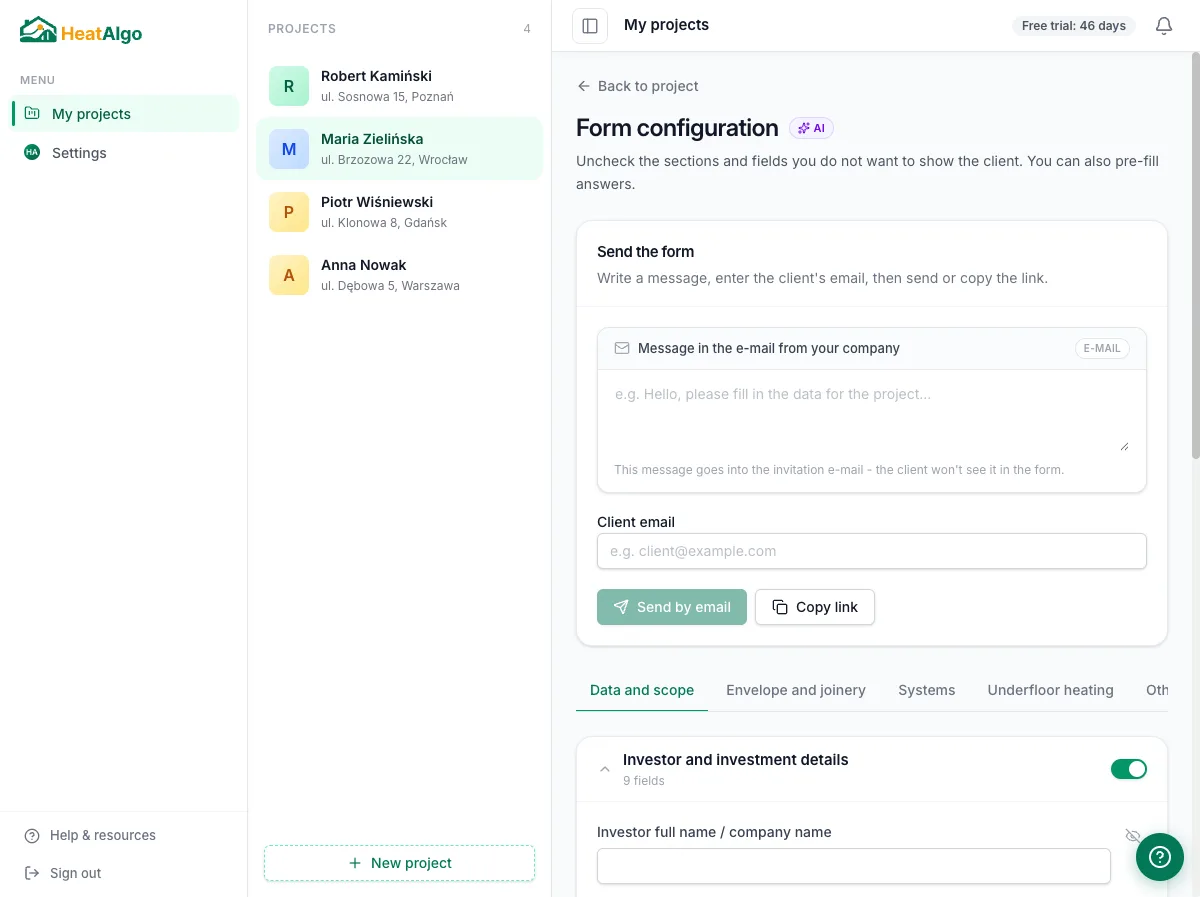
4. Send by email or copy the link
You have two options: enter the client's email and send the invitation straight from HeatAlgo, or copy the link with one click and share it however suits you - by SMS, WhatsApp, or in a message you're already writing to the client.
5. What the client sees
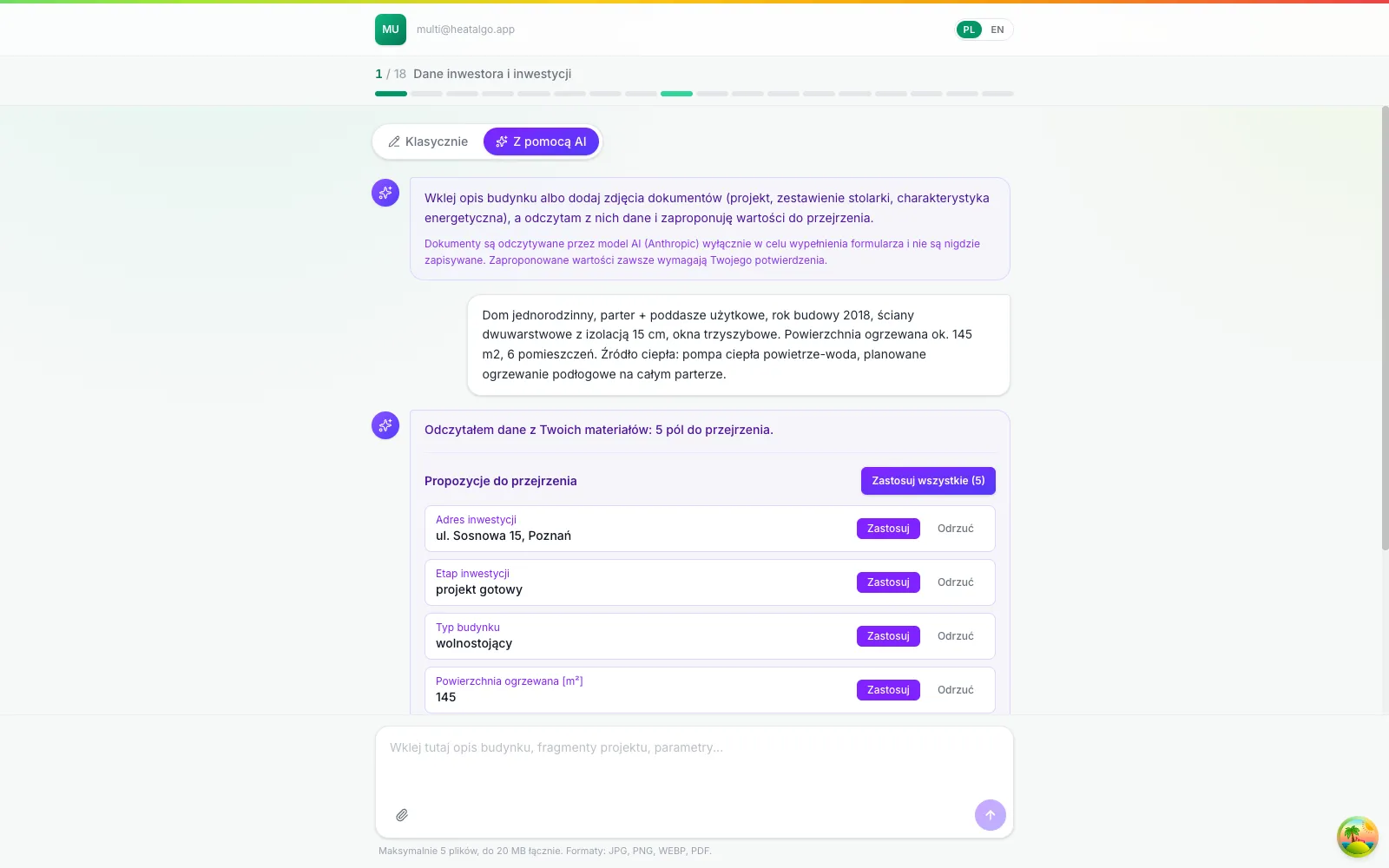
The client opens the link without creating an account and chooses how to fill in the data: the classic way, field by field, or in the "With AI help" mode, where they paste a description of the building or photos of documents and AI suggests values to approve. The form saves itself as they go, so the client can come back to it later.
6. You get a notification
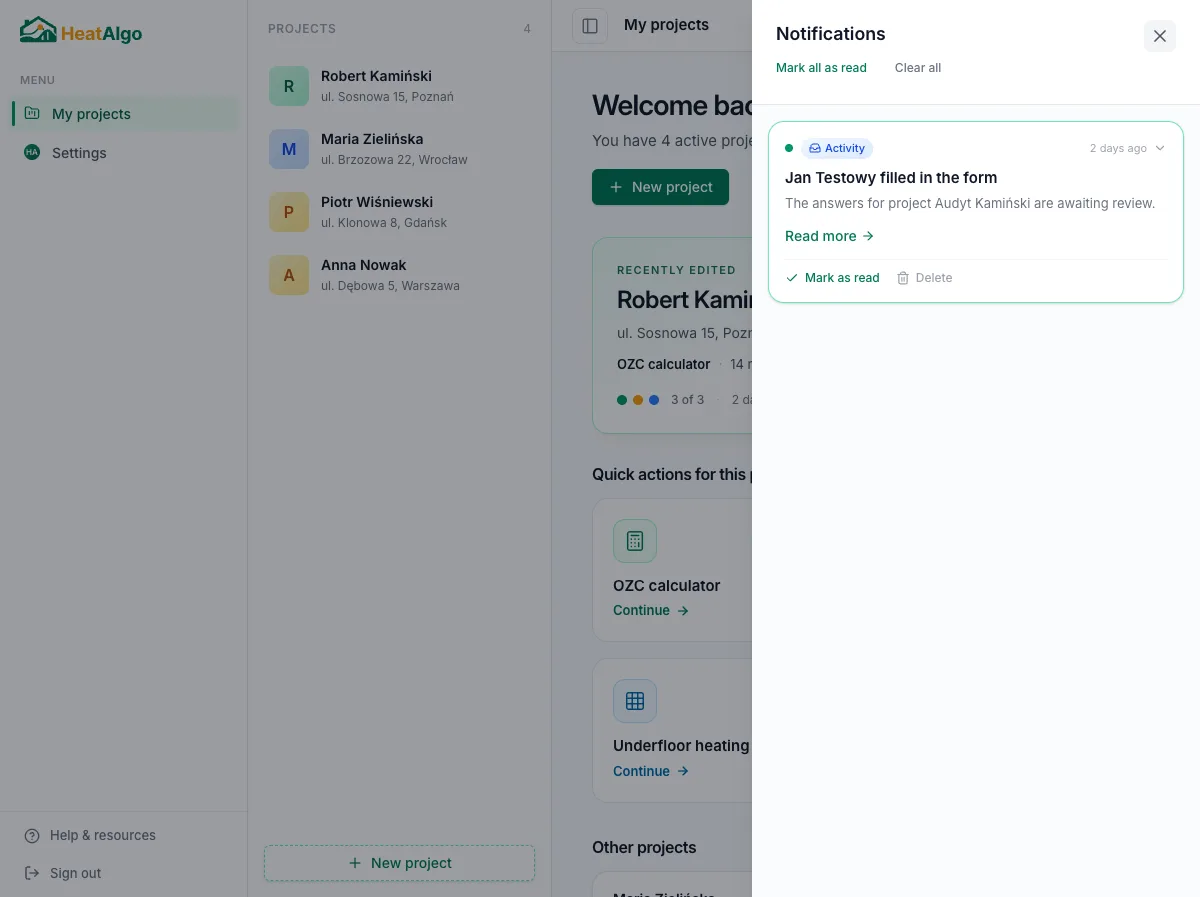
When the client submits the form, HeatAlgo notifies you - the bell in the top bar and an email. No need to keep opening the project to check whether anything changed.
7. Review the answers
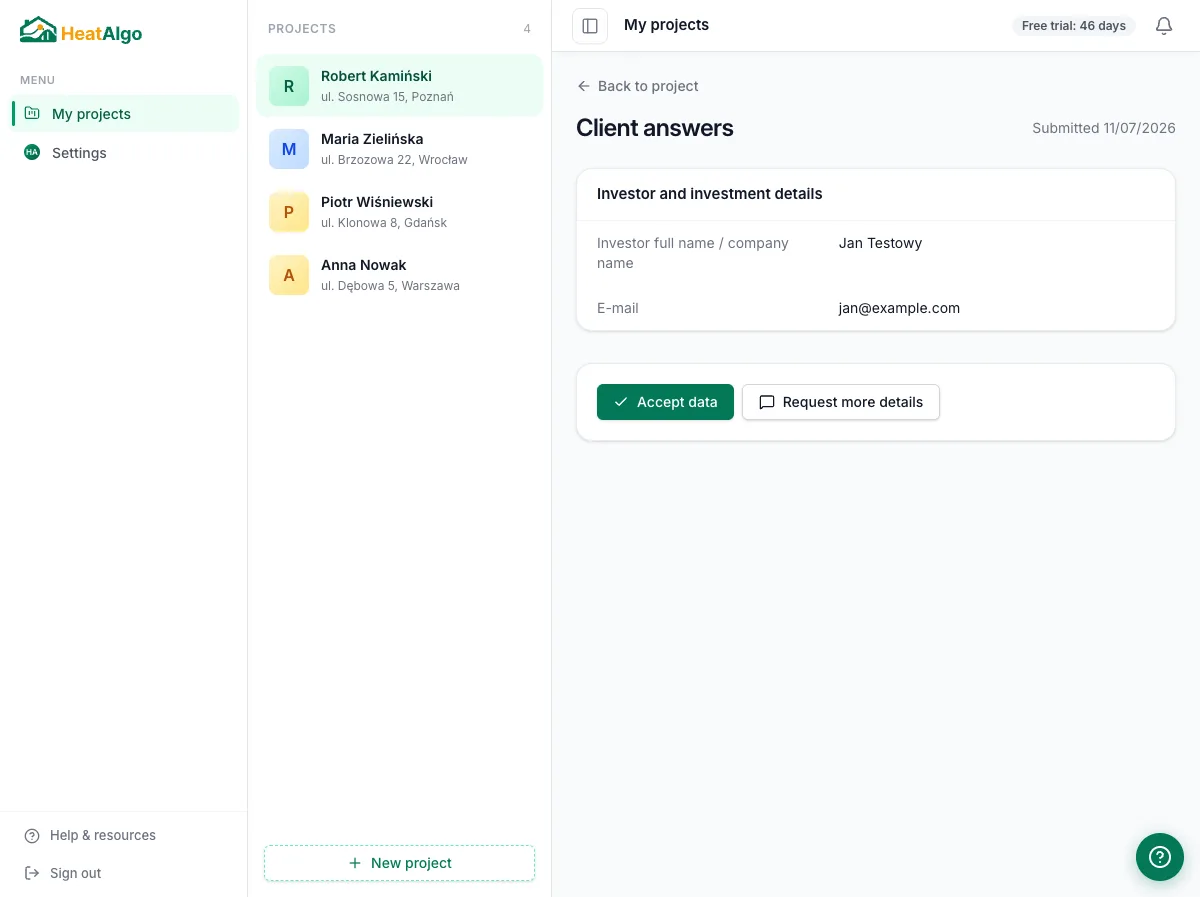
Once the client submits the form, you see their complete answers in one place, section by section, exactly as they filled them in.
8. Accept the data or request additions
Both buttons sit under the client's answers - you can see them on the previous step's screen. If everything checks out, click "Accept data" and the form is ready for the next stage. If something's missing or looks off, click "Request additions" and briefly describe what should be corrected - the client gets the same link and doesn't start over.
9. Import the data into OZC with one click
After acceptance, an "Import from form" option appears in the OZC module. Click it, preview exactly what will be written into the calculation fields, and confirm the import. No manual copying.
That's all
Nine steps from creating the project to imported data - without a single phone call about a window size. The rest, the OZC calculation itself, you do as usual. More guides live in the help center.
Try free for 14 days